# Bots
Build the bots your customers talk to in chat and email, with their own name, face and personality, test them, and pick which widget or address each one answers on.
A **bot** is who your customers meet when the [AI agent](/guides/ai/#the-ai-agent-for-chat-and-email) answers them: its name, its face and the way it talks. Ollie is the bot every workspace starts with. Build your own as well, such as a playful helper for your docs and a formal one for another brand, and pick which widget or email address each one answers on.
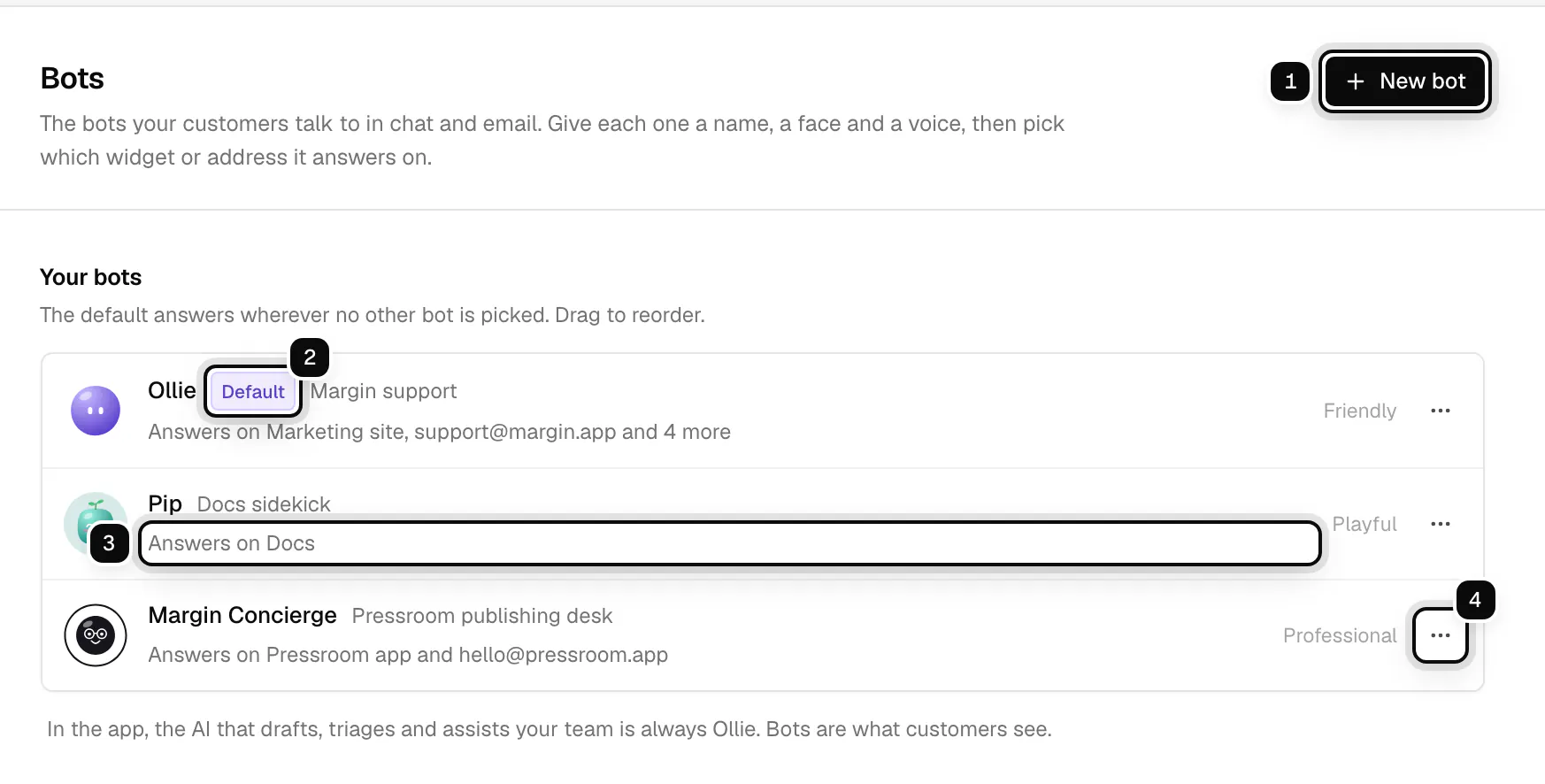
1. **New bot**: adds a bot with a fresh name and a random face, and opens it. The shortcut is N.
2. **Default**: the bot that answers everywhere you have not picked another one.
3. **Where it answers**: the widgets and email addresses that use this bot.
4. **Actions**: make it the default, duplicate it or delete it.
Inside the app, nothing changes for your team: drafts, triage, the assistant and every AI action are still Ollie's. Bots are what customers see.
## Build a bot
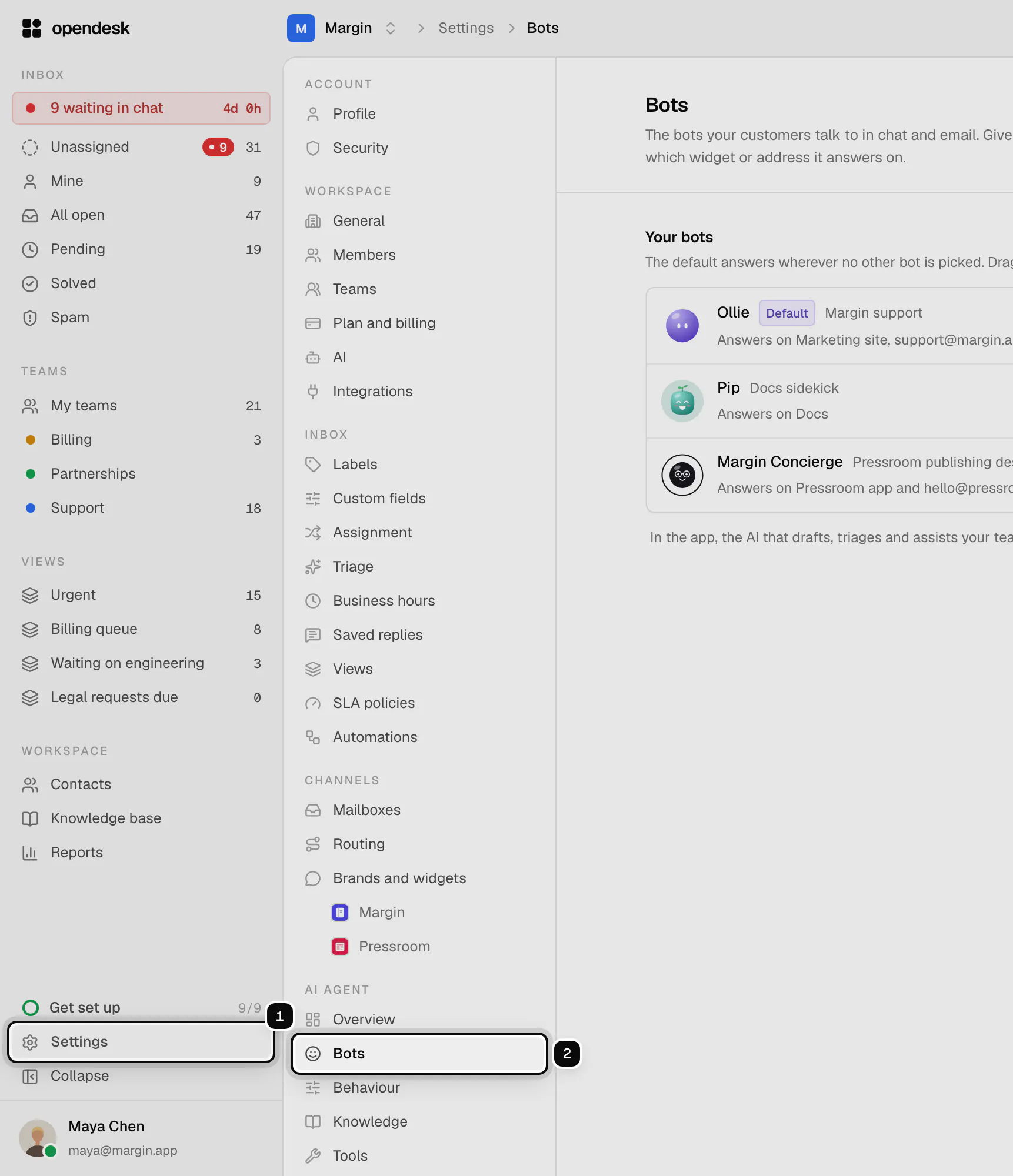
**1. Open Settings, then Bots**
Bots are under **AI agent** in the settings menu. Admins create and change bots; everyone else can see them.
**2. Give it a face**
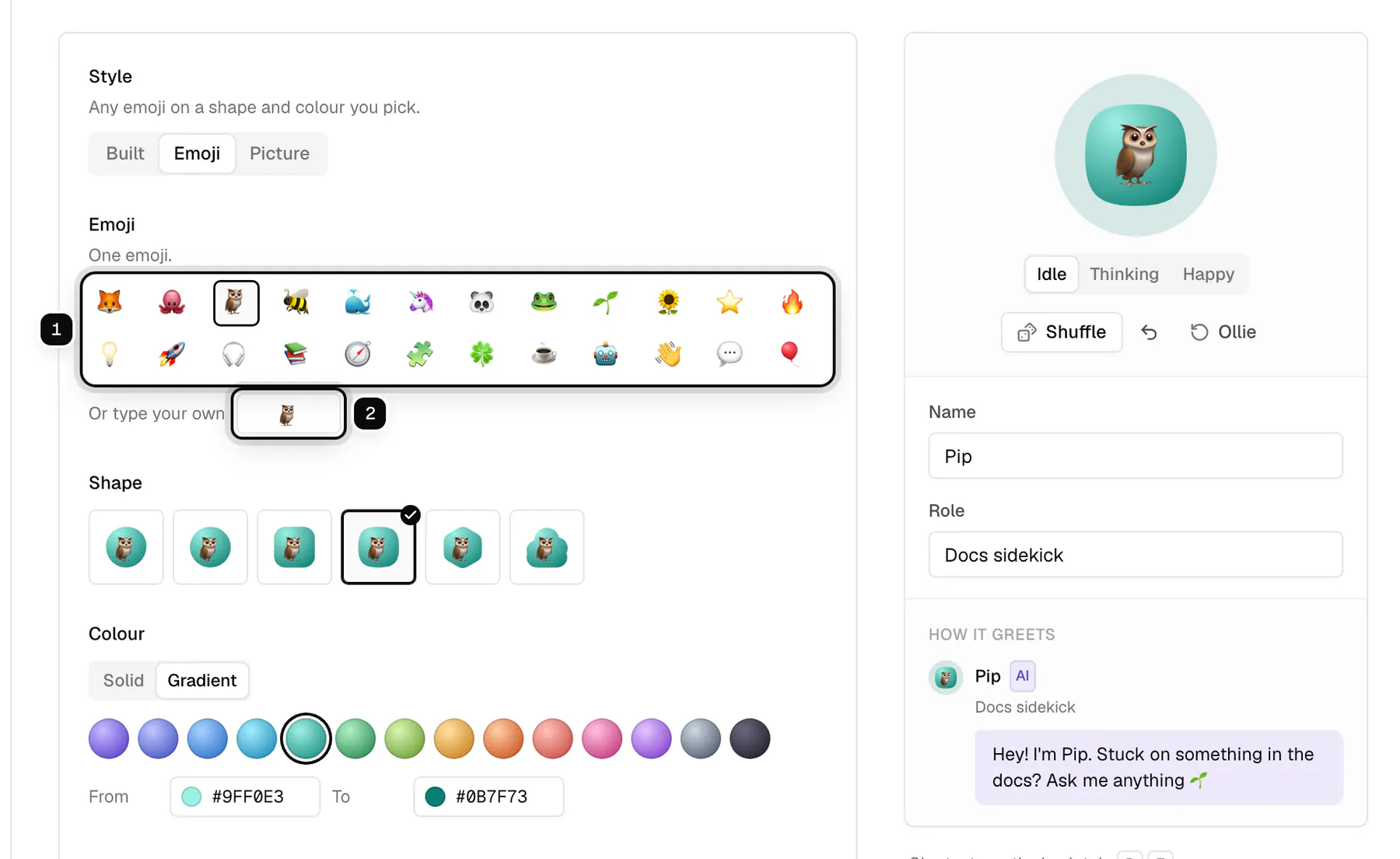
Click a bot, or **New bot**. On the **Look** tab, pick a style and build the face from parts. Every tile is a preview of the whole face with that one part changed, and the big face on the right updates as you go.
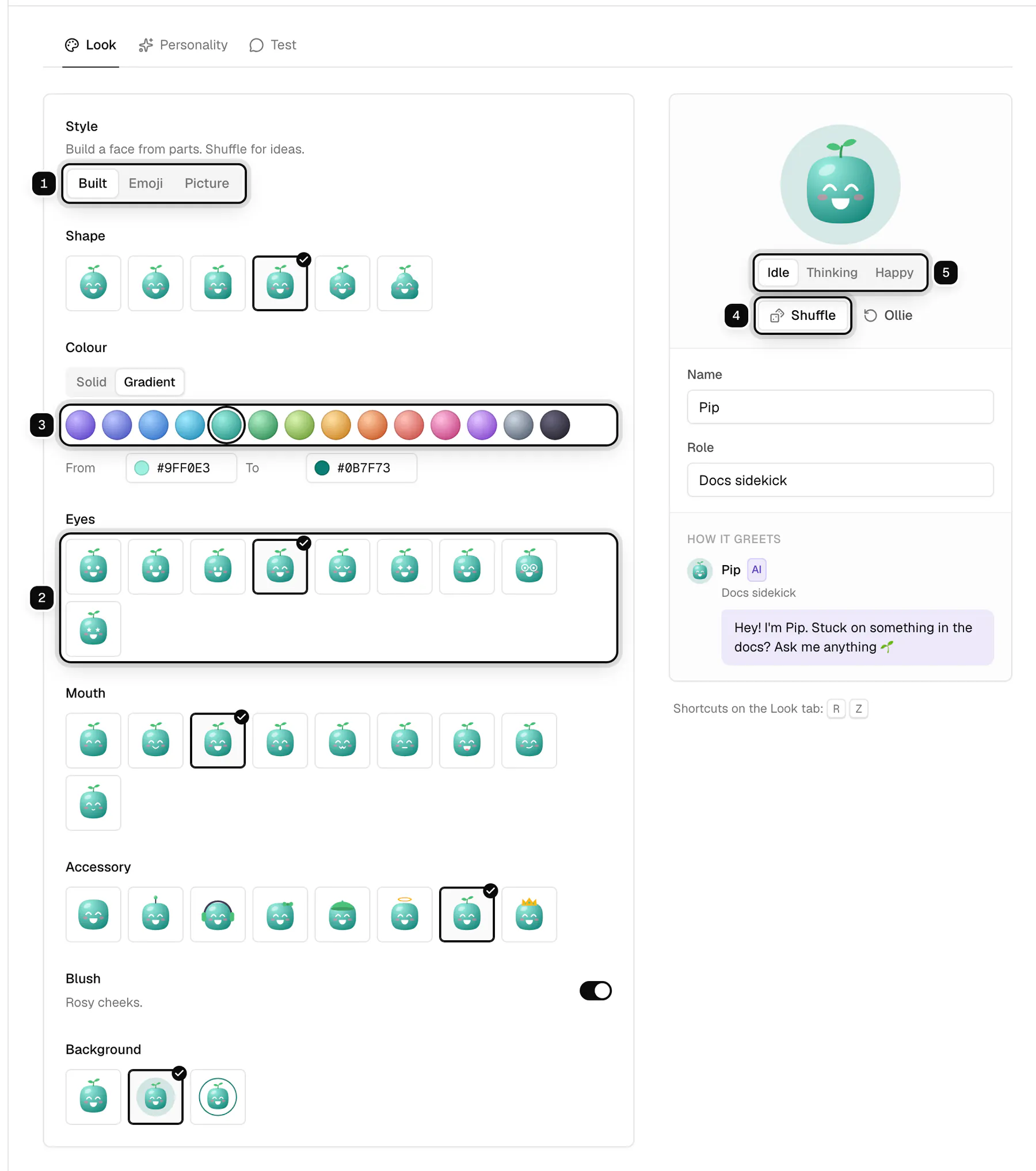
1. **Style**: **Built** from parts, an **Emoji** on a shape, or your own **Picture**.
2. **Parts**: shape, eyes, mouth, an accessory such as headphones or a sprout, blush, and a background.
3. **Colour**: a solid colour or a gradient from the palette, or any colour by its hex code.
4. **Shuffle**: a random face. Undo brings back the one before.
5. **Preview**: how the face looks while idle, while it is writing an answer, and when an answer lands.
**3. Shuffle for ideas**
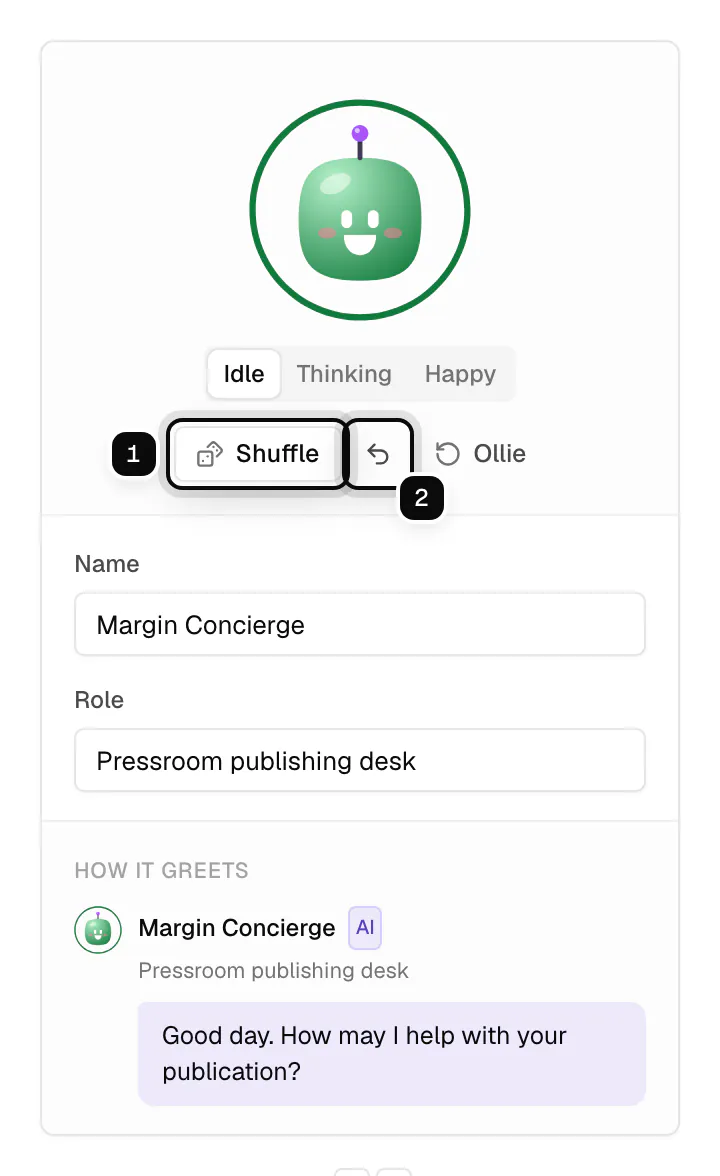
**Shuffle**, or R on the Look tab, draws a new random face and keeps your background. Z undoes it. **Ollie** starts again from Ollie's face.
**4. Or use an emoji or a picture**
With **Emoji**, pick one from the list or type your own, then choose its shape and colour. With **Picture**, upload a square PNG, JPEG or WebP. It is shown round, and you can remove it again later.
**5. Save**
Changes stay a draft until you click **Save changes**. Leaving the page with unsaved changes asks first.
> **Note**
>
> Faces move a little: they blink, bob while writing and hop when an answer lands. When someone's device asks for reduced motion, they stay still.
## Personality
The **Personality** tab sets how the bot talks. It changes the voice only: what the agent may do, its guardrails and its limits stay the same for every bot.
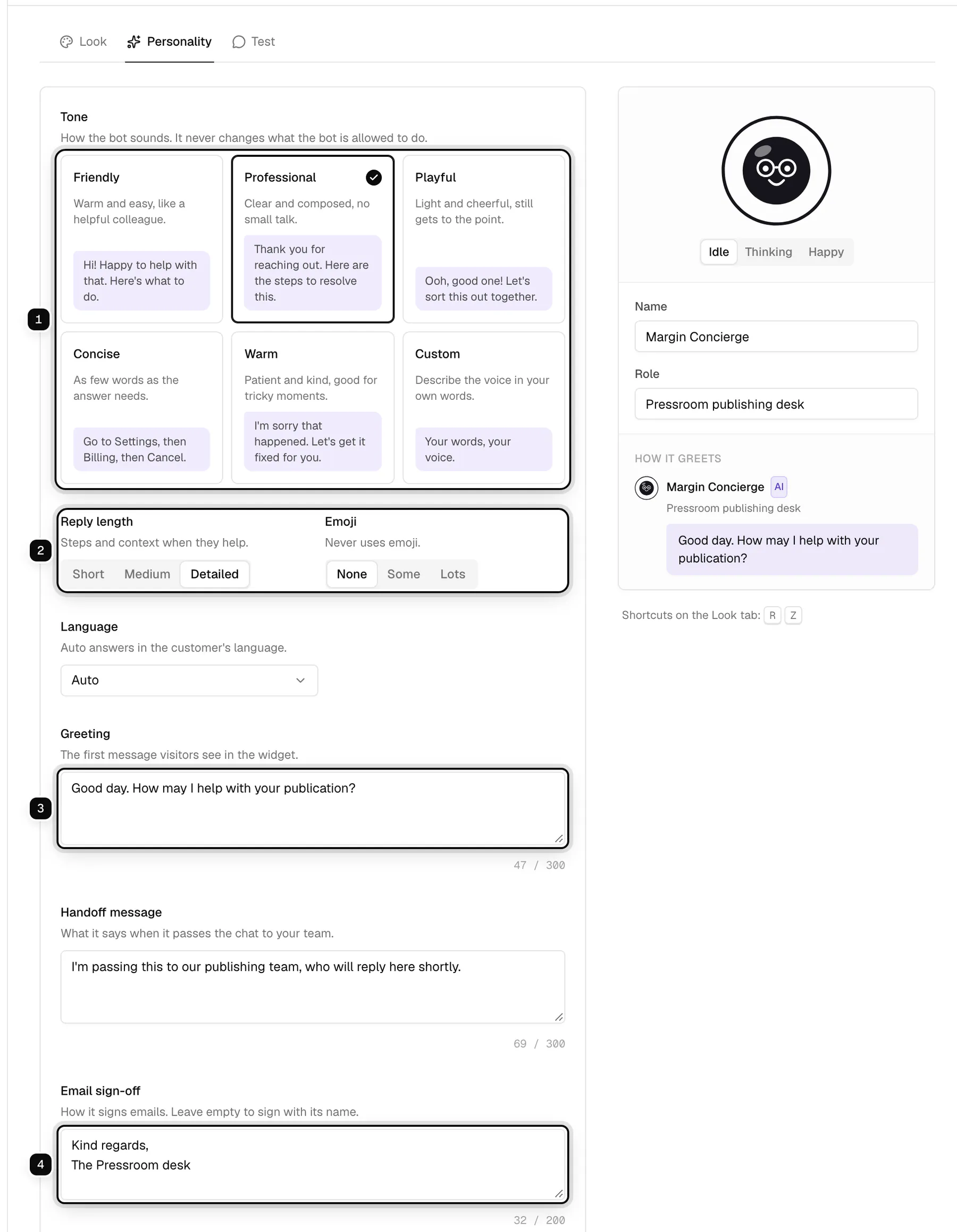
1. **Tone**: friendly, professional, playful, concise, warm, or **Custom**, described in your own words. Each card shows a sample line.
2. **Reply length** and **Emoji**: short, medium or detailed answers, and no, some or lots of emoji.
3. **Greeting**: the first message visitors see when they open the widget. **Handoff message** below it is what the bot says when it passes the chat to your team.
4. **Email sign-off**: how it signs emails. Empty signs with its name.
**Language** is **Auto** by default: the bot answers in the customer's language. Pick one to have it always answer in that language.
### What it knows
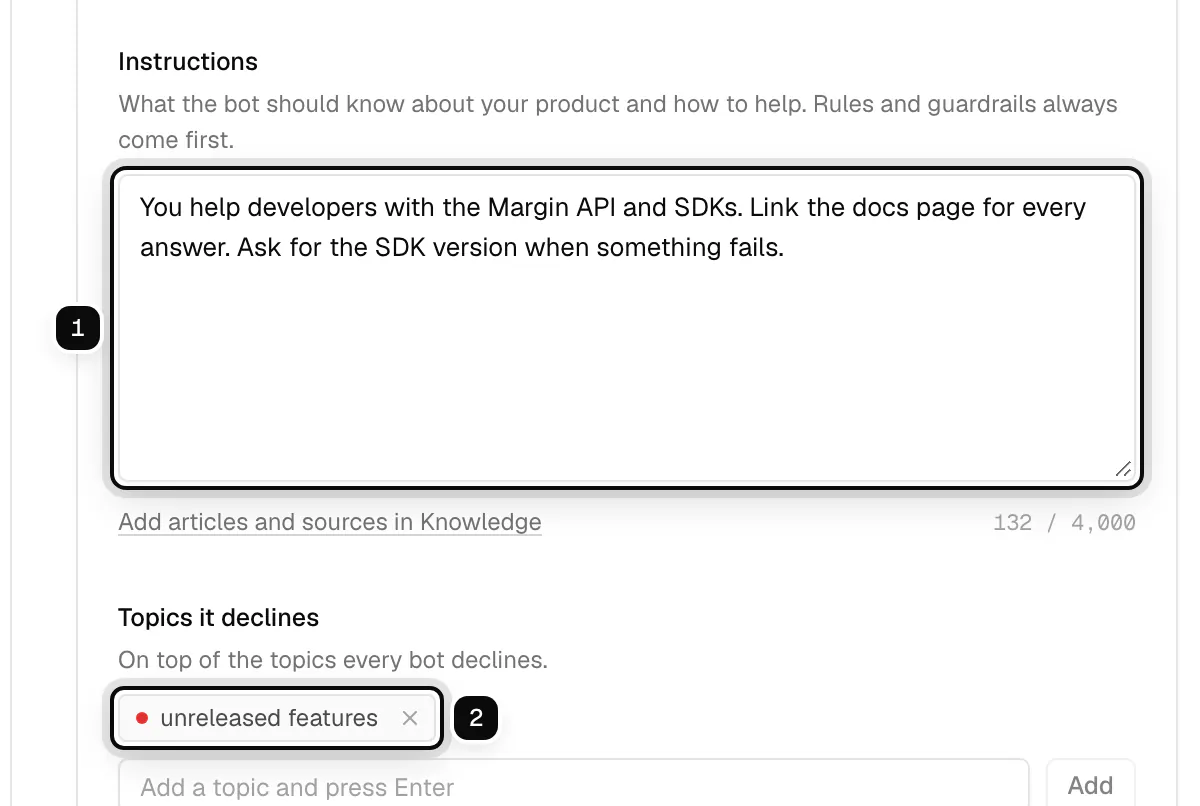
**Instructions** are notes for this bot: who it helps, what to link, what to ask for. Your help center and the sources in [Knowledge](/guides/ai/#set-up-the-agent) are always part of what it knows. **Topics it declines** are added to the topics every bot declines, set in **AI agent, Behaviour**.
## Test it
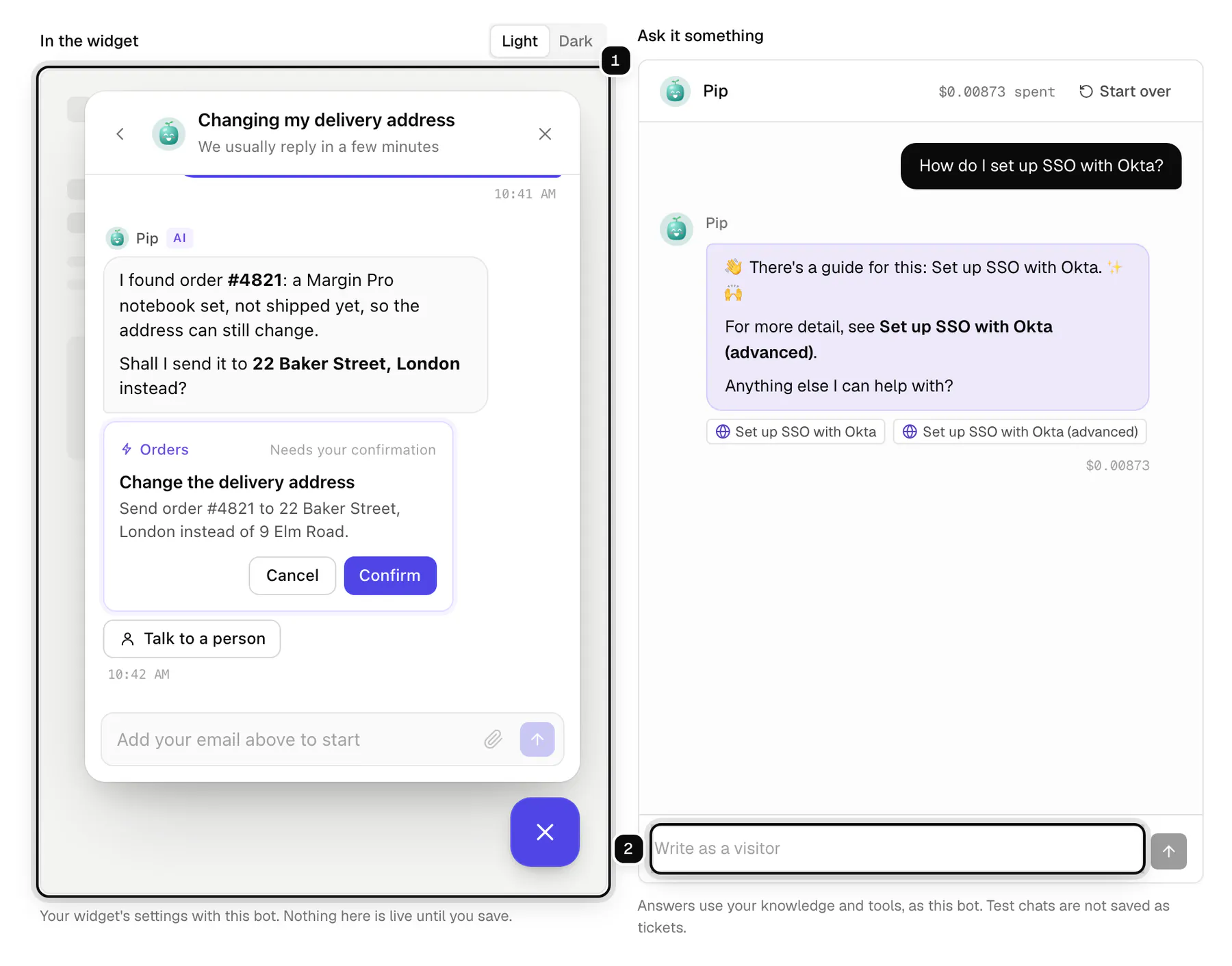
The **Test** tab shows your widget with this bot in it, next to a chat where you can ask it anything. Both use your unsaved changes, so you can try a tone before you save it. Test chats are never sent to a customer or saved as tickets, and cost what their answers cost.
## Choose where a bot answers
**1. On a widget**
Open the widget in **Settings, Brands and widgets** and choose its **Bot**. The default bot is the one marked **Default**. The preview beside it shows the widget with that bot.
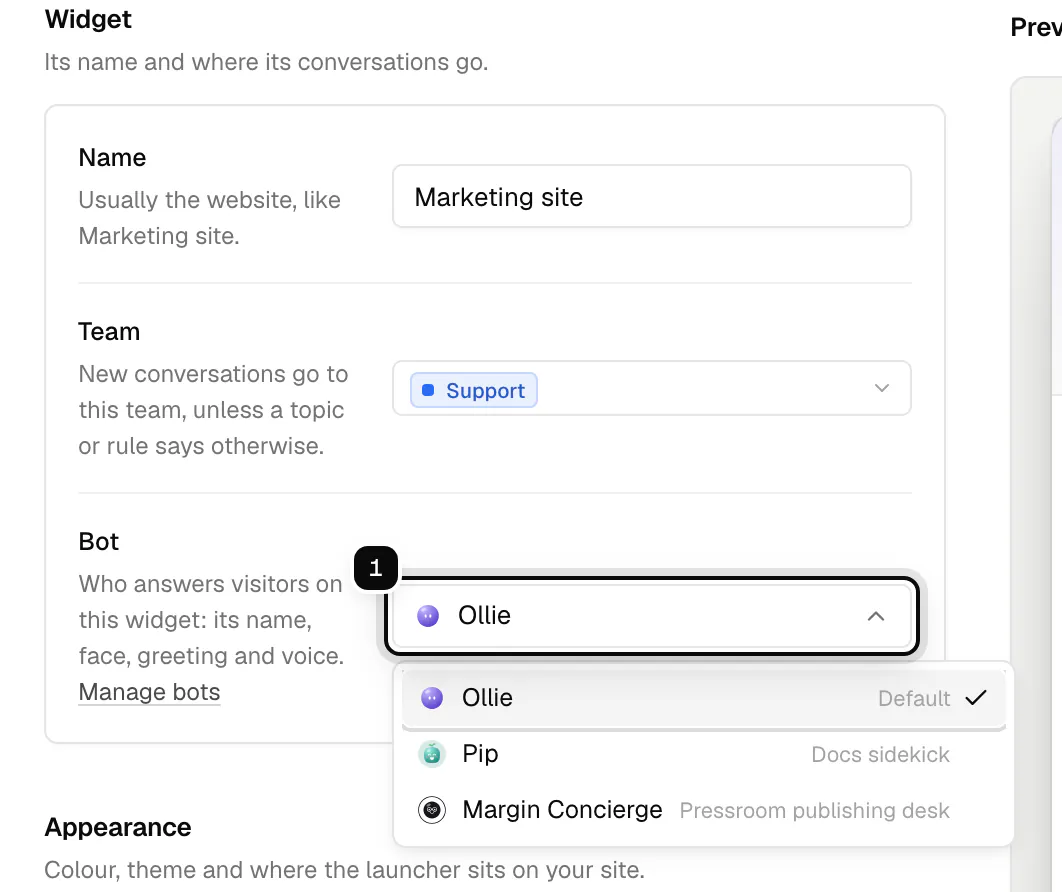
**2. On an email address**
Open the mailbox in **Settings, Mailboxes**. Once the agent answers emails to it, choose the **Bot** that writes and signs those emails.
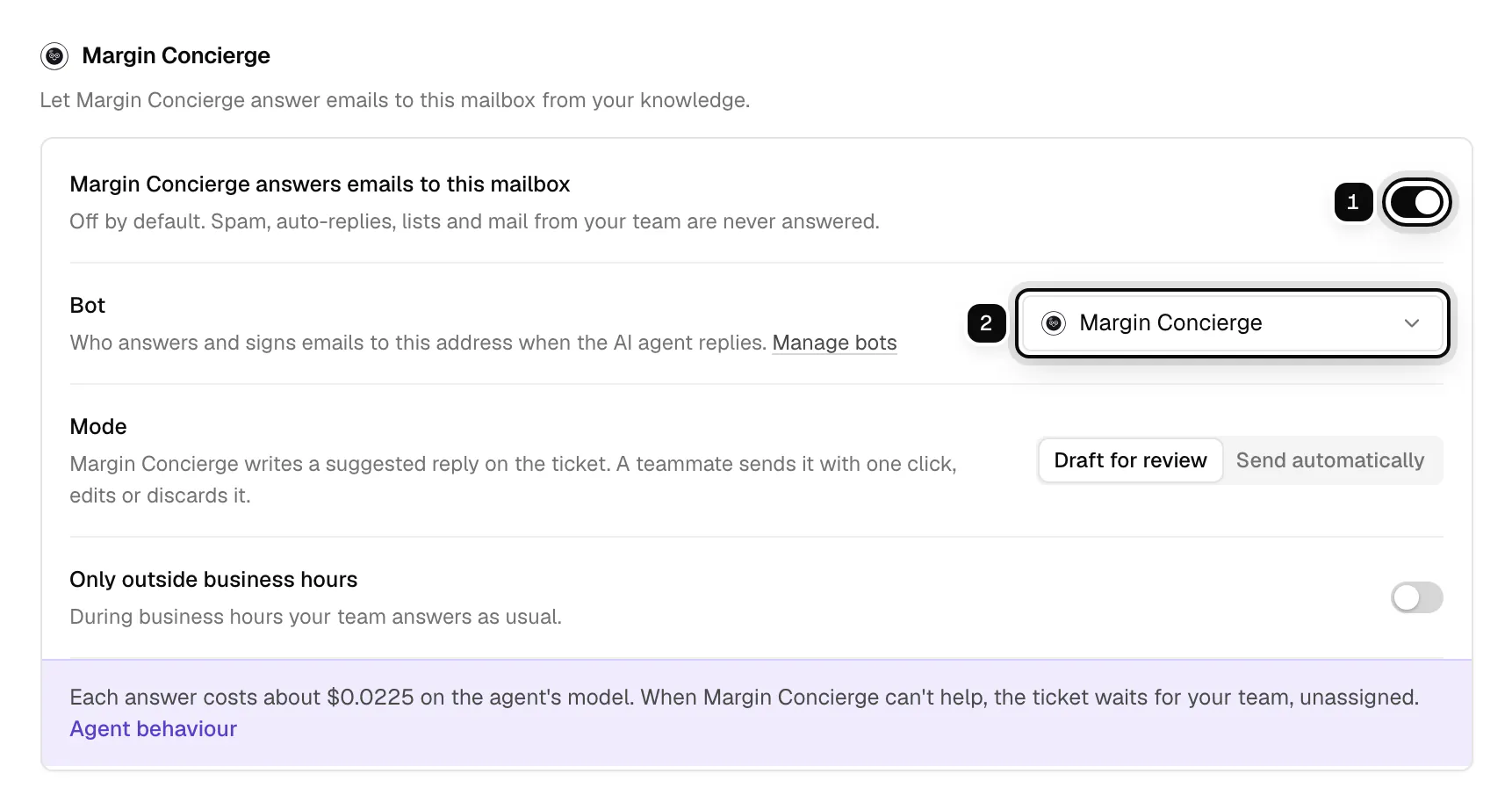
Where no bot is picked, the default bot answers. Making another bot the default moves all of those at once.
## What customers and your team see
Visitors see the bot's name, face and role in the widget header, on each of its answers and while it writes. Email recipients see its name as the sender and its sign-off. In the inbox, its messages carry its name and face with the **AI** label, so your team always knows which answers came from a bot.
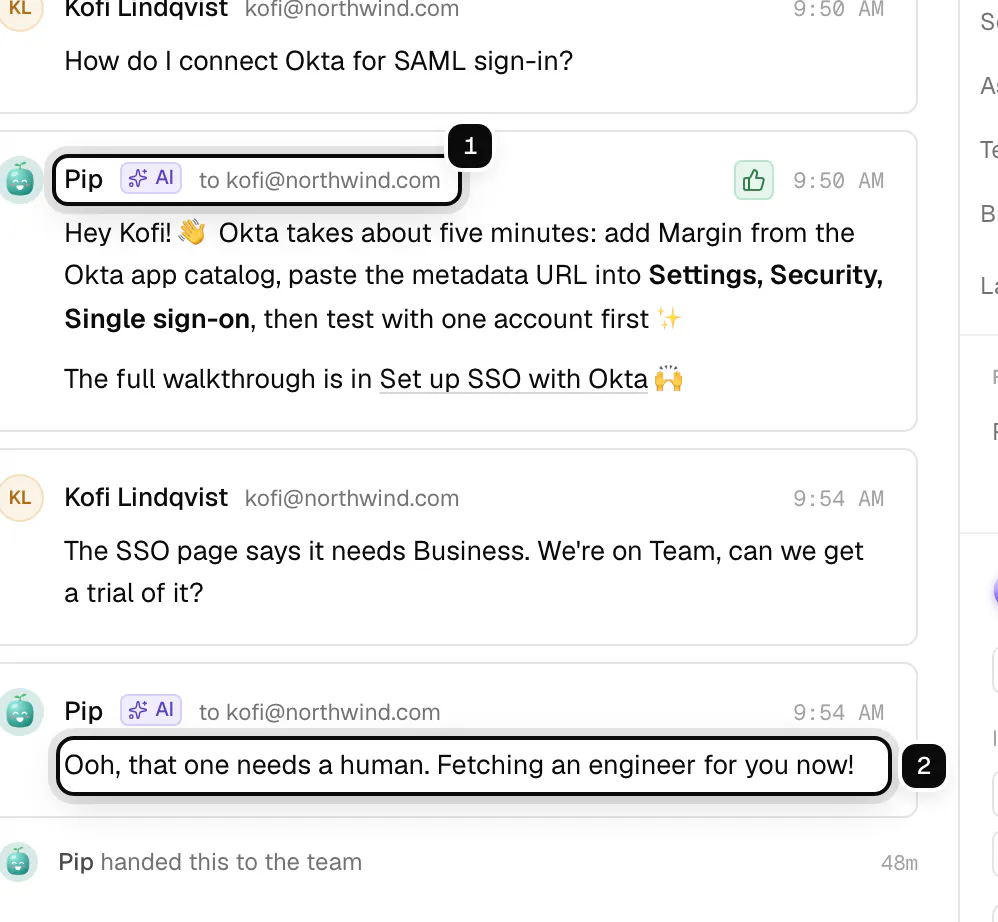
A sent message keeps the bot it was sent as, even if you rename or change the bot later.
## Duplicate, reorder and delete
- **Duplicate** copies a bot's look and personality, without where it answers. A good start for a second brand.
- **Drag** bots to reorder the list, or use Alt with the arrow keys on the handle. The order is also the order in pickers.
- **Delete** removes a bot and its picture. The default bot can't be deleted: make another bot the default first. A bot that still answers on a widget or address can't be deleted either: pick another bot there first. Past messages keep its name.
A workspace can have up to 50 bots. Creating, changing, deleting and reordering bots is recorded in the audit log.
## Bots in the API
Bots are a resource of the [public API](/api/): `GET /v1/bots` lists them, and admins and API keys with settings access create and change them. A widget's and a mailbox's `bot_id` picks its bot; `null` means the default. Every bot's face is also a public image at `/v1/public/bots/{id}/avatar.svg` (and `.png`), so you can show it anywhere. Changes arrive live as `bot.created`, `bot.updated` and `bot.deleted` events.
## Related
- [AI features](/guides/ai/)
- [Brands and widgets](/guides/brands-and-widgets/)
- [Mailboxes](/guides/mailboxes/)
- [Ollie, the assistant](/guides/ollie/)